Google Play requires me to have a privacy Policy:
Some of my applications have access to sensitive information details can be seen below:
Droid 2CAD
Access to location and SD card to allow registering of points based on location and exporting the data to the SD card.
Dxf Camera
Access to camera and SD Card to alow the creation of dxf files based on the image being seen through the camera.
Both of these applications use Flurry Analytics.
Monday, 19 December 2016

Wednesday, 17 December 2014
ShareJs - Windows 8.1 install
Install Windows SDK
Install VS 2013 express
install nodejs
install coffee-script
npm install express
npm install optimist
npm install connect@"<2 .0.0="" p="">npm install share@"<0 .7="" p="">
this may fail through linking errors
open C:\Users\carl\node_modules\share\node_modules\ws\build\validation.vcxproj and update configuration to latest version of VS and save.
npm install share@"<0 .7="" p="">
this should work now.
to start example server:
node node_modules\share\bin\exampleserver
Install VS 2013 express
install nodejs
install coffee-script
npm install express
npm install optimist
npm install connect@"<2 .0.0="" p="">npm install share@"<0 .7="" p="">
this may fail through linking errors
open C:\Users\carl\node_modules\share\node_modules\ws\build\validation.vcxproj and update configuration to latest version of VS and save.
npm install share@"<0 .7="" p="">
this should work now.
to start example server:
node node_modules\share\bin\exampleserver
Ludum Dare Jam 31

On the 5th December I took part in the Ludum Dare 72 Hour Jam. The theme this time was 'Entire Game on one screen'. In the earlier voting rounds the theme of 'Snowman' had been popular and we spent Friday night up to the announcement looking for ideas based around this. Then at 02:00 Saturday morning the theme was revealed and we had to come up with another idea. After sleeping on it, it was decided to do a Beat 'em up style game of children against Snowmen (I had found some pictures on Pinterest which we really liked and wanted to use in the game)
I was joining @Garethiw and @gredgie , The plan was that I would come up with the sound and other areas that were normally rushed near the end of their previous Jams. As Eddie Izzard put it when talking about his Clarinet playing in a band, I would be doing 'the bits that were left over'.
So we had a theme and off we went. Garethiw wrote all of the game code in Unity and Gredgie created the graphics, while I came up with sound effects, some of the UI and the bodycount scoreboard scripts. Our work was committed to Github which seamed to work well apart from some issues with prefabs.
I had great fun over the weekend especially when creating the voices for some of the creatures in the game. As with my previous entry I marvel at the ability of my friends and that they let me join them.
Gameplay footage
Time lapse of the weekend
You can play our entry at the links below.
Links:
Unity Web player link
Ludum Dare Entry
LD31 Pinterest board
Saturday, 6 September 2014
Ludum Dare 30 - Jam
Over the weekend of 22nd August to 25th August I took part in the 30th Ludum Dare Game Jam. The aim of the jam is to create a game within 72 hrs based on a theme revealed on the Ludum Dare Site. The theme this time was Connected Worlds, we had been coming up with rough outlines of ideas for the final 20 themes and this was the one we didn't want (always the case !). After some discussion we decide to go for a Romeo and Juliet based game where you were trying to defuse the hostilities between the 2 families result in the main character not killing themselves.

We had decided to use Unity 3D as our platform ( I have recently started learning it and my team mate @Arakade has previously entered the jam using it. We set off with myself doing attempting the 3D model sourcing and Aracade writing AI using behavior trees with a view that we could switch between code and modelling type tasks as we went on. We decided to use assets from the Unity Asset Store that we already owned, gave us a good head start and meant we could get something working to play with quite quickly.
I started to looking at character models created with MakeHuman , Autodesk Character Generator (ACG) and the Unity Multipurpose Avatar(UMA) framework. We ended up using a lead Romeo model from ACG and other models being generated via UMA. The big problem was clothes, UMA starts of with vests and jeans and the ACG models are more aligned for soldier/zombie games. So I set off to try and play fashion designer. This ended up with me spending large amounts of time upgrading my skills in blender and Unity's animation tools and neglecting a lot of the other stuff I could probably have made more progress with. After I switched to laying out the scene using the Cartoon Town and Farm Kit from Micheal O and messing around with Shakespearean Insults I enjoyed myself more and made better progress.
We ended up submitting a game to the Jam, it was not in a state that we felt was anyway near initial concept but it would have been a shame to not show off something and watching the characters being controlled by Arakade's AI Behavior trees insulting each other is quite fun.Our starting view for the jam was that we wanted to learn new skills as well as having fun and if we came up with a completed game that was a bonus. I definitely learned a lot and enjoyed myself over the weekend, maybe next time we will finish ......
Ludum Dare Game Page

We had decided to use Unity 3D as our platform ( I have recently started learning it and my team mate @Arakade has previously entered the jam using it. We set off with myself doing attempting the 3D model sourcing and Aracade writing AI using behavior trees with a view that we could switch between code and modelling type tasks as we went on. We decided to use assets from the Unity Asset Store that we already owned, gave us a good head start and meant we could get something working to play with quite quickly.
I started to looking at character models created with MakeHuman , Autodesk Character Generator (ACG) and the Unity Multipurpose Avatar(UMA) framework. We ended up using a lead Romeo model from ACG and other models being generated via UMA. The big problem was clothes, UMA starts of with vests and jeans and the ACG models are more aligned for soldier/zombie games. So I set off to try and play fashion designer. This ended up with me spending large amounts of time upgrading my skills in blender and Unity's animation tools and neglecting a lot of the other stuff I could probably have made more progress with. After I switched to laying out the scene using the Cartoon Town and Farm Kit from Micheal O and messing around with Shakespearean Insults I enjoyed myself more and made better progress.
We ended up submitting a game to the Jam, it was not in a state that we felt was anyway near initial concept but it would have been a shame to not show off something and watching the characters being controlled by Arakade's AI Behavior trees insulting each other is quite fun.Our starting view for the jam was that we wanted to learn new skills as well as having fun and if we came up with a completed game that was a bonus. I definitely learned a lot and enjoyed myself over the weekend, maybe next time we will finish ......
Ludum Dare Game Page
Saturday, 19 July 2014
Windchill and Scala: a quick dabble
Scala runs on the Java Virtual machine (JVM) and compiles to byte code the same as Java, this means that like jython it can also use Java libraries.
One of the nice features of some modern languages is the REPL a console that allows the direct input of code to the interpreter along with instantaneous feedback.
PTC's Windchill PLM/PDM Application is written in Java and also features an API to allow it to be customised to meet customer requirements. Running the Scala console inside a windchill shell allows access to windchill libraries and hence allows code be run on windchill's Method Servers using remote method server calls.
To give it a try download and install Scala from http://www.scala-lang.org/download/ then open a windchill shell and type scala to access the Scala REPL.
Like Java, before you can make any calls using the Windchill API you need to import the classes, also to be able to run windchill methods we need a remote method server instance, so we can enter
followed by
now that we have a method server we can access it's methods, by entering
we can print out the start time of the method server as shown below.

PTC's Windchill PLM/PDM Application is written in Java and also features an API to allow it to be customised to meet customer requirements. Running the Scala console inside a windchill shell allows access to windchill libraries and hence allows code be run on windchill's Method Servers using remote method server calls.
To give it a try download and install Scala from http://www.scala-lang.org/download/ then open a windchill shell and type scala to access the Scala REPL.
Like Java, before you can make any calls using the Windchill API you need to import the classes, also to be able to run windchill methods we need a remote method server instance, so we can enter
import wc.method.remotemethodserver
followed by
val remotemethodserver=RemoteMethodServer.getDefault()
now that we have a method server we can access it's methods, by entering
println(remotemethodserver.getInfo().startDate()
we can print out the start time of the method server as shown below.

Typing this in line by line would soon get repetitive and boring so we can create our code in a text file and then run it via the Scala console using scala filename.scala in this case scala WindchillExamples.scala
The below code shows some examples of using the windchill api to create a part and query the database, the syntax looks similar to how it would be written in Java with a few differences (specifying the class in the query spec and casting the returned part object from Persistable for instance).
import wt.part.WTPart
import wt.method.RemoteMethodServer
import wt.fc.PersistenceHelper
import wt.query.QuerySpec
import wt.query.SearchCondition

object WindchillExamples {
def main(args: Array[String]) {
  println("Hello, Windchill!")


  // Get MethodServer

  val remotemethodserver=RemoteMethodServer.getDefault()
  val name="examplePart"
  createPart(name)
  countParts(name)

}

def countParts (name:String){

  //example query

  var qs=new QuerySpec(classOf[WTPart])
  qs.appendWhere(new SearchCondition(classOf[WTPart], WTPart.NAME,SearchCondition.LIKE, name))
  val qr = PersistenceHelper.manager.find(qs)
  println("Query results count: "+qr.size())
  val resultantPart=qr.nextElement()
  println(resultantPart.asInstanceOf[WTPart].getNumber())

}

def createPart(name:String){

  //example create part

  var part=WTPart.newWTPart()
  part.setName(name)
  PersistenceHelper.manager.store(part)

}

}
Sunday, 16 February 2014
Controlling a Berry Clip from Node.js
I am looking to try and run a workshop session at my local developers group, the group contains developers form a range of background and hence a number of languages, this makes workshops interesting. To be able to do any interesting projects with a Raspberry Pi I would prefer people are spend their thinking about problems and not battling which ever language is currently running on my RPi devices. A recent pole suggested that javascript was the most widely used language among the group so I decided to see could be achieved in Node.js.
I found a few libraries/modules that allowed gpio access and decided to try onoff since it the example code included using an event to trap button pushes.
I am not quite sure currently what my final project will be but starting off with a simple project I decided to try and control my Berry Clip 6 LED addon board.
The below code selects a random LED to turn on and turns off the previously lit one. Full Information and a run script can be found in the README.ME
Code:
https://github.com/qubecad/berry_clip_node
References:
https://github.com/fivdi/onoff
http://www.raspberrypi-spy.co.uk/
I found a few libraries/modules that allowed gpio access and decided to try onoff since it the example code included using an event to trap button pushes.
I am not quite sure currently what my final project will be but starting off with a simple project I decided to try and control my Berry Clip 6 LED addon board.
The below code selects a random LED to turn on and turns off the previously lit one. Full Information and a run script can be found in the README.ME
var Gpio = require('onoff').Gpio,
    ledA = new Gpio(04, 'out'),
    ledB = new Gpio(17, 'out'),
    ledC = new Gpio(22, 'out'),
    ledD = new Gpio(10, 'out'),
    ledE = new Gpio(09, 'out'),
    ledF = new Gpio(11, 'out'),
    button = new Gpio(07, 'in', 'both');
var leds=new Array(ledA,ledB,ledC,ledD,ledE,ledF);
var lastLed=ledA;

button.watch(function(err, value) {
  var activeLed=Math.floor(Math.random() * 6);
  lastLed.writeSync(0);
  lastLed=leds[activeLed];
  leds[activeLed].writeSync(value);
});
Code:
https://github.com/qubecad/berry_clip_node
References:
https://github.com/fivdi/onoff
http://www.raspberrypi-spy.co.uk/
Tuesday, 11 February 2014
Analog Thumbstick and the Raspberry Pi
For a while now I have wanted to try using analog inputs with my Raspberry Pi. The Pi hardware only supports digital inputs, but it is also capable of communicating with expansion chips using an interface called Serial Peripheral Interface (SPI) . I decided to try my hand at getting a ThumbStick from a GamePad to work They are available for a few pounds from ebay and so would not require me to destroy an existing console controller.
Some internet research pointed me in the direction of using a MCP3008 10 bit Digital to Analogue converter. The first guide I found for using one of these was on the Adafruit learning system and used something called Bit Banging, further research showed that later Pi do not need to do this and a guide on Raspberry Pi Spy gave me a starting point using a library called py-spidev. This lead to the below circuit diagram. The 2 direction (X & Y) signals are fed into the A/D converter. When the AD converter is queried by the python code a value between 0 and 1023 is returned representing the position of the stick ie 0 is extreme left, around 500 centre and 1023 extreme right.

The next part was to make my stick work like a joystick. I decided to have a play with PyGame (PyGame is installed as default on the Raspbian image) and see what I could come up with. At IWDEV 2 Gareth Williams gave a Introduction to Monogame and created a simply shooter based on an alien and his cat. Trying to recreate this in python on the Pi would provide me with a suitable test for my joystick.

Once this was working I started to create some code to act as a bridge between the A/D and the normal Joystick functions. Luckily this proved to just be a case of setting range of the A/D converter values when initialising the uniput library and then passing in the value received by querying the chip. I used a third analog channel for the switch activated by pressing down the stick but it should really be a digital GPIO input and I was being lazy.
The results as a Google + Auto Awesome montage

The python uinput library download and install details can be found at:
Matt Hawkins guide to the MCP 3008 including enabling the kernel modules and installing py-spidev can be found at:
My final python listener script can be found on github at:
To start, run the .setup.sh script which loads the uniput module and then start the python script with the command:
sudo python analog_joycestick.py &
this should start the script as a background process (requested via the &) and display the process id of the script. If you later want to quit the script you can stop it using sudo kill -9
Sources:
http://www.raspberrypi-spy.co.uk
Sunday, 24 November 2013
Snap N Paint
After a recent visit to see my niece and nephew I wanted to see if I could come up with an app that they might use. My idea was to create a paint by numbers style app but to source the picture to be coloured from an image.
The result is Snap N Paint, the picture is captured via the camera and processed using the OpenCV library sobel function, this provides an outline which can then be coloured in.
To make sure the correct colours are available in the palette, the original image is used. The user selects the area they would like to colour and the correct colour is set active.
My current results are shown below (and my dodgy colouring skills), it is still a work in progress and I will probably never release it but it is quite fun if you have a stylus and a tablet.
Sunday, 27 October 2013
Setting the Raspberry Pi's JAVA_HOME
The new Raspberry Pi build of Raspbian now comes with Java 1.7 pre installed.
If you need to set JAVA_HOME it can be set by carrying out the following to your ~/.bashrc
nano ~/.bashrc
then add the following and save the changes
export JAVA_HOME="/usr/lib/jvm/jdk-7-oracle-armhf"
export PATH=$PATH:$JAVA_HOME/bin
when you next login try typing:
export
you will see a list of values, one of which should be
declare -x JAVA_HOME="/usr/lib/jvm/jdk-7-oracle-armhf"
A guide for installing and setting up the java 8 preview is available at :
http://www.savagehomeautomation.com/raspi-jdk8
If you need to set JAVA_HOME it can be set by carrying out the following to your ~/.bashrc
nano ~/.bashrc
then add the following and save the changes
export JAVA_HOME="/usr/lib/jvm/jdk-7-oracle-armhf"
export PATH=$PATH:$JAVA_HOME/bin
when you next login try typing:
export
you will see a list of values, one of which should be
declare -x JAVA_HOME="/usr/lib/jvm/jdk-7-oracle-armhf"
A guide for installing and setting up the java 8 preview is available at :
http://www.savagehomeautomation.com/raspi-jdk8
Sunday, 6 October 2013
MineCraft: Pi Edition Java Api
I saw a recent post on Raspberry Pi Spy about the Pi edition of MineCraft having a python API and thought it might be fun to play with. After installing, it seems it also has a Java Api which closely follows the Python. The next question was what to write, always a sticking point. I decided upon flipping things on their head a little and have a joystick in MineCraft control my trusty PiBot (I've tried to control it with everything else why not this). Hitting one of the blocks via a right click would launch the Bot into action.

The Bot is controlled by a Web service, so no changes were needed from the code previously written to talk to an android tablet.
The Api includes some examples written by Daniel Frisk along with a Javadoc and Martin O'Hanlon has written some good Python tutorials on his blog http://www.stuffaboutcode.com.
My resulting code can be found at
:https://bitbucket.org/chughes42/minecraft-pi
and the Pibot code is at
https://bitbucket.org/chughes42/remotepibot

The Bot is controlled by a Web service, so no changes were needed from the code previously written to talk to an android tablet.
The Api includes some examples written by Daniel Frisk along with a Javadoc and Martin O'Hanlon has written some good Python tutorials on his blog http://www.stuffaboutcode.com.
My resulting code can be found at
:https://bitbucket.org/chughes42/minecraft-pi
and the Pibot code is at
https://bitbucket.org/chughes42/remotepibot
Sunday, 4 August 2013
Useful Android adb Network debugging commands
Capture network traffic to pcap file:
adb -e shell tcpdump -s 1500 -w /sdcard/capture.pcap
Transfer pcap file from emulator to host pc
adb pull /sdcard/capture.pcap
The pcap file can then be opened in Wireshark.
Sunday, 19 May 2013
Pebble Controlled Raspberry PiBot
The Pebble 2 way Communication SDK for Andoid and iOS has just been released, so what better way to try it out than by adding Pebble controls to my Raspberry PiBot Controller.
Pressing up on the Pebble steers left, select is a toggle between forwards or stop and down steers right.
The web service on the Pi returns a Json status message which is displayed on the Tablet Console. The tablet app also features voice commands via Android Google's android services.

This is also repeated onto the Pebble when a command is sent from either device.

The code for the Pebble app can be found at https://bitbucket.org/chughes42/pebble-pibot-app and is based on the examples included with the Pebble SDK.
Pressing up on the Pebble steers left, select is a toggle between forwards or stop and down steers right.
The web service on the Pi returns a Json status message which is displayed on the Tablet Console. The tablet app also features voice commands via Android Google's android services.

This is also repeated onto the Pebble when a command is sent from either device.

Tuesday, 14 May 2013
Walk the Wight 2013
On Sunday I took part in Walk the Wight 2013, a 26.5 mile sponsored walk in aid of Earl Mountbatten Hospice. The route takes in most of the length of the Island incorporating the Tennyson Trail and includes some wonderful views of the island (weather pending).
In keeping with my usual habit of using gadgets in everything I do I decided to try and record my progress via one of the fitness apps available on my phone. I backed the Pebble smart watch on kickstarter.com and one of the first apps to support it is Runkeeper so that was a logical choice. Runkeeper tracks the route, speed and altitude and lets you view you result via a web portal (the Runkeeper results can be view at http://rnkpr.com/a2ywwyb).
The Pebble has it's own application running on the phone managing the blue tooth connection and providing some notifications, this can be further extended using Pebble Notifier which relays notifications displayed on the phone to the pebble so any tweets or SMS messages I received during the walk were displayed on my wrist instead of having dig my phone out of my bag. This was especially nice in the last few miles of the walk when the weather took a turn for the worse and it was nice to get encouraging messages coming through from friends.
Keeping the GPS running on a phone is a sure way to flatten the battery, so keeping it running for 9+ hours of the walk was going to be an issue. When I was building my Pi Bot project I used a Pebble Smart stick as a power supply, so this was ideal to extend the power to my phone. I have recently switched to using a LG Nexus 4 but it is rather power hungry compared to my older Nexus S so I decided to use my Nexus S instead to further improve the power consumption.
I raised around £120 for the hospice and for most of the walk the weather was sunny and enjoyable even if the last bit did end up rather wet. This was the third time I have taken part in Walk the Wight and every time it is wet I say I am not doing it again but I suspect once my aching muscles have recovered I will think about doing it again sometime.
Links:
Earl Mountbatten Hospice http://www.iwhospice.org/
Pebble Notifier https://play.google.com/store/apps/details?id=com.dattasmoon.pebble.plugin
RunKeeper https://play.google.com/store/apps/details?id=com.fitnesskeeper.runkeeper.pro
Pebble Smart Watch http://www.getpebble.com
Pebble SmartStick http://www.veho-uk.com/main/shop_detail.aspx?article=176
 |
| Walk the Wight Route plotted via RunKeeper |
In keeping with my usual habit of using gadgets in everything I do I decided to try and record my progress via one of the fitness apps available on my phone. I backed the Pebble smart watch on kickstarter.com and one of the first apps to support it is Runkeeper so that was a logical choice. Runkeeper tracks the route, speed and altitude and lets you view you result via a web portal (the Runkeeper results can be view at http://rnkpr.com/a2ywwyb).
The Pebble has it's own application running on the phone managing the blue tooth connection and providing some notifications, this can be further extended using Pebble Notifier which relays notifications displayed on the phone to the pebble so any tweets or SMS messages I received during the walk were displayed on my wrist instead of having dig my phone out of my bag. This was especially nice in the last few miles of the walk when the weather took a turn for the worse and it was nice to get encouraging messages coming through from friends.
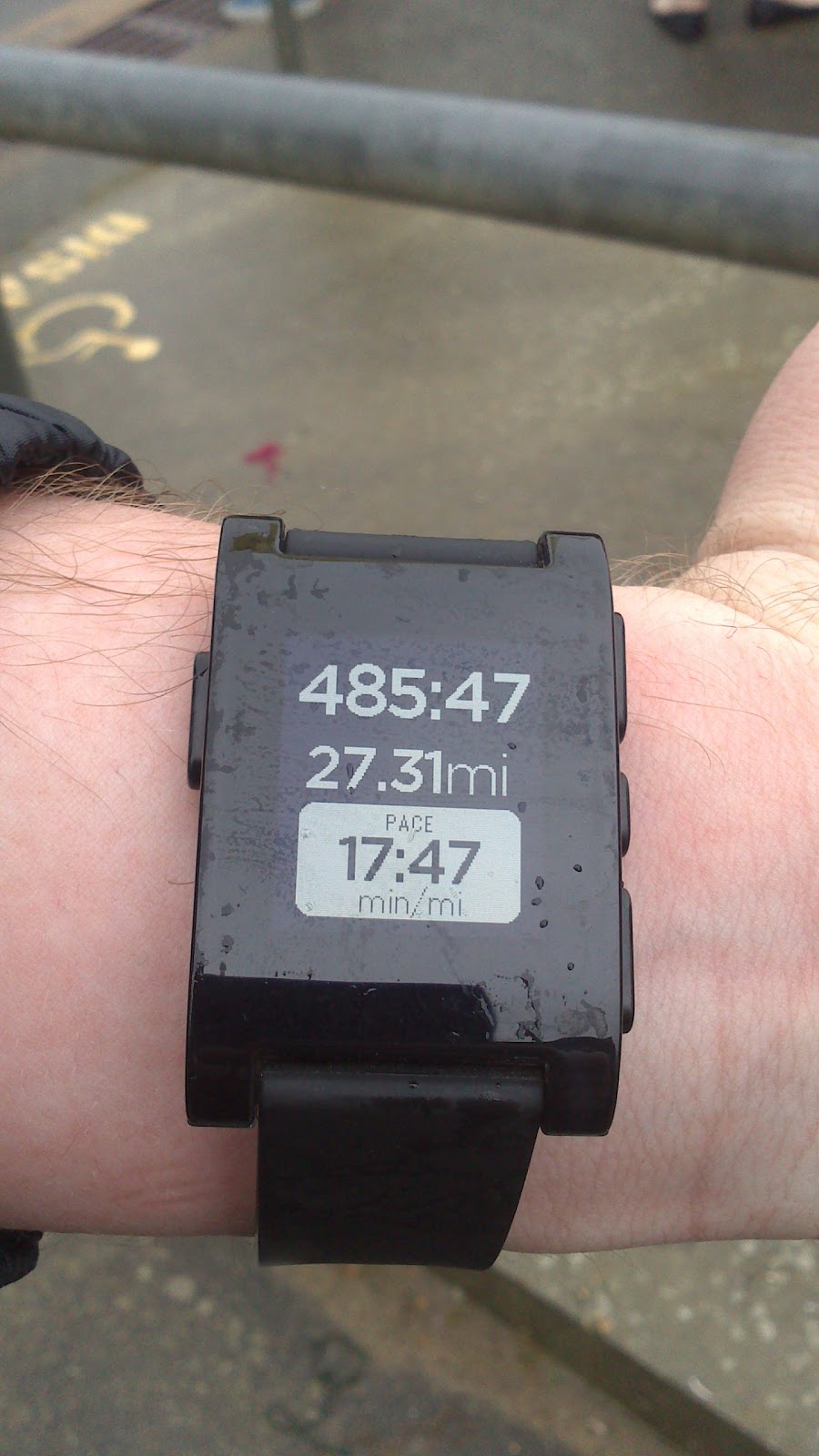 |
| Pebble Watch showing data from the RunKeeper App running on my Nexus S |
I raised around £120 for the hospice and for most of the walk the weather was sunny and enjoyable even if the last bit did end up rather wet. This was the third time I have taken part in Walk the Wight and every time it is wet I say I am not doing it again but I suspect once my aching muscles have recovered I will think about doing it again sometime.
 |
| Finished and you even get a medal! |
Links:
Earl Mountbatten Hospice http://www.iwhospice.org/
Pebble Notifier https://play.google.com/store/apps/details?id=com.dattasmoon.pebble.plugin
RunKeeper https://play.google.com/store/apps/details?id=com.fitnesskeeper.runkeeper.pro
Pebble Smart Watch http://www.getpebble.com
Pebble SmartStick http://www.veho-uk.com/main/shop_detail.aspx?article=176
Tuesday, 5 March 2013
Pi Bot Eclipse Project Repos

Android Pi Controller
Java Servlet (PiBot control code)
I recently gave a chat/demo at #IWDEV 9 using the below slides.
#IWDEV 9 slides
Saturday, 2 March 2013
First run for Raspberry Pi Bot
First test run for my Raspberry Pi powered bot inspired by cymplecy's blog (http://cymplecy.wordpress.com/). I found the magician chassis on a hobby site and was then directed to the blog by a friend. cymplecy used Scratch to program the Pi, I have once again gone for the Pi4J library to control the GPIO port from Java code, running inside a Jetty servlet container.
Apart from it's going backwards, not to bad for a first run.
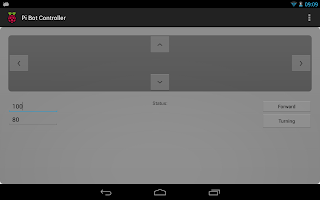
Screenshot from the Android application running on my Nexus 7. The forward and turning speeds can be adjusted and a status is displayed in the lower centre of the screen when a new instruction is sent to the Pi.

Screenshot from the Android application running on my Nexus 7. The forward and turning speeds can be adjusted and a status is displayed in the lower centre of the screen when a new instruction is sent to the Pi.
Friday, 22 February 2013
Controlling the Berry Clip/Raspberry Pi from a Java Web Service/Servlet

I decide to use the Jetty Servlet engine. This is a light weight web server and would take less resources than using an instance of Apache Tomcat. This was downloaded from http://www.eclipse.org/jetty/ and installed onto the Pi .Once installed jetty can be started going to the installation directory and issuing the command:
sudo java -jar start.jar
Jetty on it's own does not require sudo access but to access the GPIO port on the pi requires root. This is not a good idea for any production environments or internet facing services.
I then created my servlet code and configuration in Eclipse on my desktop pc. The code was exported from eclipse as a war file and then copied into the webapps directory of jetty on the pi. If jetty is running it will scan this directory and automatically install the servlet. I found if updating the war file it was a good idea to restart jetty or strange errors seem to creep in.
I added a basic html form to allow the number of the LED to be activated to be entered by the user and posted to the servlet.
This is accessible at:8080/BerryPi_Servlet/
I added a basic html form to allow the number of the LED to be activated to be entered by the user and posted to the servlet.
 |
| The form allowing users to select an LED |
This is accessible at
The code is once again built using the Pi4J library from the Pi4J Project (http://pi4j.com/).
The Eclipse project including the exported WAR file can be found on bitbucket:
https://bitbucket.org/chughes42/berryclipws/src
The bulk of the java code is shown below
BerryPiWS.java
package com.qubecad.pi.berrypiws;

import java.io.IOException;
import java.io.PrintWriter;

import javax.servlet.ServletException;
import javax.servlet.http.HttpServlet;
import javax.servlet.http.HttpServletRequest;
import javax.servlet.http.HttpServletResponse;

import com.pi4j.io.gpio.GpioController;
import com.pi4j.io.gpio.GpioFactory;
import com.pi4j.io.gpio.GpioPinDigitalOutput;
import com.pi4j.io.gpio.PinState;
import com.pi4j.io.gpio.RaspiPin;

/**
 * Servlet class BerryPiWS to Control the Berry Clip for the raspberry Pi
 * available from http://www.raspberrypi-spy.co.uk/
 */

public class BerryPiWS extends HttpServlet {
 private static final long serialVersionUID = 1L;
 GpioController gpio;
 GpioPinDigitalOutput pina;
 GpioPinDigitalOutput pinb;
 GpioPinDigitalOutput pinc;
 GpioPinDigitalOutput pind;
 GpioPinDigitalOutput pine;
 GpioPinDigitalOutput pinf;

 /**
  * Default constructor.
  */
 public BerryPiWS() {

  GpioController gpio = GpioFactory.getInstance();

  // Set up the pins and set low to start
  System.out.println("Setting up GPIO Pins for output");
  pina = gpio.provisionDigitalOutputPin(RaspiPin.GPIO_07, "Pin A",
    PinState.LOW);
  pinb = gpio.provisionDigitalOutputPin(RaspiPin.GPIO_00, "Pin B",
    PinState.LOW);
  pinc = gpio.provisionDigitalOutputPin(RaspiPin.GPIO_03, "Pin C",
    PinState.LOW);
  pind = gpio.provisionDigitalOutputPin(RaspiPin.GPIO_12, "Pin D",
    PinState.LOW);
  pine = gpio.provisionDigitalOutputPin(RaspiPin.GPIO_13, "Pin E",
    PinState.LOW);
  pinf = gpio.provisionDigitalOutputPin(RaspiPin.GPIO_14, "Pin F",
    PinState.LOW);

 }


 /**
  * @see HttpServlet#doPost(HttpServletRequest request, HttpServletResponse
  *      response)
  */
 protected void doPost(HttpServletRequest request,
   HttpServletResponse response) throws ServletException, IOException {
  // get the number of the LED to turn on and print to console
  String action = request.getParameter("action");
  System.out.println("action=" + request.getParameter("action"));

  try {

   // activate the request light, pause and reset.
   if (action.equals("1")) {
    System.out.println("A high");
    pina.high();
    Thread.sleep(1000);
    pina.low();

   } else if (action.equals("2")) {
    System.out.println("B high");
    pinb.high();
    Thread.sleep(1000);
    pinb.low();

   } else if (action.equals("3")) {
    System.out.println("C high");
    pinc.high();
    Thread.sleep(1000);
    pinc.low();

   } else if (action.equals("4")) {
    System.out.println("D high");
    pind.high();
    Thread.sleep(1000);
    pind.low();

   } else if (action.equals("5")) {
    System.out.println("E high");
    pine.high();
    Thread.sleep(1000);
    pine.low();

   } else if (action.equals("6")) {
    System.out.println("F high");
    pinf.high();
    Thread.sleep(1000);
    pinf.low();

   }

  } catch (InterruptedException e) {

   System.out.print("Exception ");
  }

  // display the LED select form on the return page

  PrintWriter out = response.getWriter();

  String pagehtml = "";

  // if there was a valid LED number display a message

  if ("123456".contains(action)) {
   pagehtml = pagehtml + "
LED number " + action + " selected
";

  }
  String pagehtmlform = "
";
out.println(pagehtml + pagehtmlform);
}
}
Links:The Pi4J Project http://pi4j.com/
Raspberry Pi Spy http://www.raspberrypi-spy.co.uk/berryclip-6-led-add-on-board/
Jetty Web Server http://www.eclipse.org/jetty/
Thursday, 21 February 2013
Using an Ultrasonic Range Finder with the Raspberry Pi from Java.
A little while ago I bought an ultrasonic range finder from ebay to see if I could get it working with my Raspberry Pi. I got it working from Python and then demonstrated it to #IWDEV a local group of developers who meet to chat about developing on the Isle of Wight, as part of an open chat about the Raspberry Pi.
It seemed the logical progression was to try and get it working from Java. The resulting code is shown below. I first tried to use an event listener to capture the results from the senser but failed to get it working (wondering it if it is a timing/sensitivity issue) so I have resulted to using a loop which checks the pin state.
As per my earlier post about using a stepper motor I have used the Pi4J library to access the Pi's GPIO port.
There is a guide to connecting the sensor to the Pi by +RaspberryPi Spy at http://www.raspberrypi-spy.co.uk/ if you are interested in giving it ago.
RangeFinder.Java:
package com.qubecad.pi.PiBot;

import com.pi4j.io.gpio.GpioPinDigitalInput;
import com.pi4j.io.gpio.GpioPinDigitalOutput;
import com.pi4j.io.gpio.PinState;
import com.pi4j.io.gpio.event.GpioPinDigitalStateChangeEvent;
import com.pi4j.io.gpio.event.GpioPinListenerDigital;

public class RangeFinder {
 double result = 0;
 GpioPinDigitalOutput firepulse;
 GpioPinDigitalInput result_pin;

 RangeFinder(GpioPinDigitalOutput trigger, GpioPinDigitalInput result_pin) {

  this.firepulse = trigger;
  this.result_pin = result_pin;

 }

 /**
  *
  * Trigger the Range Finder and return the result
  *
  * @return
  */
 public double getRange() {
  System.out.println("Range Finder Triggered");
  try {
   // fire the trigger pulse
   firepulse.high();

   Thread.sleep(20);
  } catch (InterruptedException e) {

   e.printStackTrace();
   System.out.println("Exception triggering range finder");
  }
  firepulse.low();

  // wait for the result

  double startTime = System.currentTimeMillis();
  double stopTime = 0;
  do {

   stopTime = System.currentTimeMillis();
   if ((System.currentTimeMillis() - startTime) >= 40) {
    break;
   }
  } while (result_pin.getState() != PinState.HIGH);

  // calculate the range. If the loop stopped after 38 ms set the result
  // to -1 to show it timed out.

  if ((stopTime - startTime) <= 38) {
   result = (stopTime - startTime) * 165.7;
  } else {
   System.out.println("Timed out");
   result = -1;
  }

  return result;

 }

}
PiBot.java
package com.qubecad.pi.PiBot;

import com.pi4j.io.gpio.GpioController;
import com.pi4j.io.gpio.GpioFactory;
import com.pi4j.io.gpio.GpioPinDigitalInput;
import com.pi4j.io.gpio.GpioPinDigitalOutput;
import com.pi4j.io.gpio.PinPullResistance;
import com.pi4j.io.gpio.PinState;
import com.pi4j.io.gpio.RaspiPin;

public class PiBot {

 /**
  * @param args
  */
 public static void main(String[] args) {

  // Setup GPIO Pins
  GpioController gpio = GpioFactory.getInstance();

  //range finder pins

  GpioPinDigitalOutput rangefindertrigger = gpio.provisionDigitalOutputPin(RaspiPin.GPIO_00, "Range Finder Trigger", PinState.LOW);

  GpioPinDigitalInput rangefinderresult = gpio.provisionDigitalInputPin(RaspiPin.GPIO_03, "Range Pulse Result", PinPullResistance.PULL_DOWN);

  // Create the range finder
  RangeFinder rangefinder = new RangeFinder(rangefindertrigger,rangefinderresult);

  do {
  // Get the range
  double distance=rangefinder.getRange();

  System.out.println("RangeFinder result ="+distance +"mm");
  } while (false!=true);


 }
}
Links:The Pi4J Project (http://pi4j.com/)
#IWDEV on facebook (https://www.facebook.com/groups/iwdev/)
RaspberryPi-spy.co.uk (http://www.raspberrypi-spy.co.uk)
Friday, 7 December 2012
Raspberry Pi, the BerryClip and Java
I ordered the board via Ebay and it came a few days later. The board took less than an hour to assemble and a set of test scripts in python written by Matt Hawkins, the BerryClip's creator are available for download.
Carrying on from the Stepper Motor code that I have written using the Pi4J Library I decided to see if I could get the BerryClip working from Java. This seemed pretty straight forward apart from finding the that the Pi4J library GPIO names do not seem to align with those in python. I created a class to test each LED, once I had the correct GPIO names reference in my code the LEDs worked without any issues.
| Function | Pi4J GPIO Name |
| LED 1 | GPIO_14 |
| LED 2 | GPIO_13 |
| LED 3 | GPIO_12 |
| LED 4 | GPIO_03 |
| LED 5 | GPIO_00 |
| LED 6 | GPIO_07 |
| Switch | GPIO_11 |
| Buzzer | TBD |
One of the example python scripts provided with the BerryClip is a Dice Simulator so I decided to see if I could create a similar function from Java. The resulting code is included below.
Dice.java
/**
 *
 * Implementation of a D6 for the Berry Clip Raspberry Pi add on available from http://www.raspberrypi-spy.co.uk
 *
 * Based on an example by Matt Hawkins
 *
 */

package com.qubecad.pi.dice;

import com.pi4j.io.gpio.GpioController;
import com.pi4j.io.gpio.GpioFactory;
import com.pi4j.io.gpio.GpioPinDigitalInput;
import com.pi4j.io.gpio.GpioPinDigitalOutput;
import com.pi4j.io.gpio.PinPullResistance;
import com.pi4j.io.gpio.PinState;
import com.pi4j.io.gpio.RaspiPin;

public class Dice {

 public static void main(String[] args) throws InterruptedException {

  GpioController gpio = GpioFactory.getInstance();

  // Set up the pins and set low to start
  System.out.println("Setting up GPIO Pins for output");
  GpioPinDigitalOutput pina = gpio.provisionDigitalOuputPin(RaspiPin.GPIO_07, "Pin A", PinState.LOW);
  GpioPinDigitalOutput pinb = gpio.provisionDigitalOuputPin(RaspiPin.GPIO_00, "Pin B", PinState.LOW);
  GpioPinDigitalOutput pinc = gpio.provisionDigitalOuputPin(RaspiPin.GPIO_03, "Pin C", PinState.LOW);
  GpioPinDigitalOutput pind = gpio.provisionDigitalOuputPin(RaspiPin.GPIO_12, "Pin D", PinState.LOW);
  GpioPinDigitalOutput pine = gpio.provisionDigitalOuputPin(RaspiPin.GPIO_13, "Pin E", PinState.LOW);
  GpioPinDigitalOutput pinf = gpio.provisionDigitalOuputPin(RaspiPin.GPIO_14, "Pin F", PinState.LOW);

  // Setup pin for button

  GpioPinDigitalInput roleButton = gpio
    .provisionDigitalInputPin(RaspiPin.GPIO_11, "Role Button", PinPullResistance.PULL_DOWN);

  // add a listener for the button press event

  roleButton.addListener(new GpioRoleListener(pina, pinb, pinc, pind, pine, pinf));

  // start a loop until the user quits via CTRL C

  while (true) {
   Thread.sleep(500);

  }

 }

}


GpioRoleListener.java


/**
 *
 * Implementation of a D6 for the Berry Clip Raspberry Pi add on available from http://www.raspberrypi-spy.co.uk
 *
 * Based on an example by Matt Hawkins
 *
 */


package com.qubecad.pi.dice;

import java.util.HashMap;
import java.util.Random;

import com.pi4j.io.gpio.GpioPinDigitalOutput;
import com.pi4j.io.gpio.event.GpioPinDigitalStateChangeEvent;
import com.pi4j.io.gpio.event.GpioPinListenerDigital;

class GpioRoleListener implements GpioPinListenerDigital {

 private static GpioPinDigitalOutput resultpina;
 private static GpioPinDigitalOutput resultpinb;
 private static GpioPinDigitalOutput resultpinc;
 private static GpioPinDigitalOutput resultpind;
 private static GpioPinDigitalOutput resultpine;
 private static GpioPinDigitalOutput resultpinf;

 private static HashMap diceresult = new HashMap();

 /**
  * Listener to handle the Button Press event and roll the dice
  *
  */


 public GpioRoleListener(GpioPinDigitalOutput pina, GpioPinDigitalOutput pinb, GpioPinDigitalOutput pinc,
   GpioPinDigitalOutput pind, GpioPinDigitalOutput pine, GpioPinDigitalOutput pinf) {

  // pass through the output pins and setup the dice roll results

  resultpina = pina;
  resultpinb = pinb;
  resultpinc = pinc;
  resultpind = pind;
  resultpine = pine;
  resultpinf = pinf;

  diceresult.put(0, "000001");
  diceresult.put(1, "000011");
  diceresult.put(2, "000111");
  diceresult.put(3, "001111");
  diceresult.put(4, "011111");
  diceresult.put(5, "111111");

 }

 /** (non-Javadoc)
  * @see com.pi4j.io.gpio.event.GpioPinListenerDigital#handleGpioPinDigitalStateChangeEvent(com.pi4j.io.gpio.event.GpioPinDigitalStateChangeEvent)
  */
 @Override
 public void handleGpioPinDigitalStateChangeEvent(GpioPinDigitalStateChangeEvent event) {

  // check the button state, if HIGH roll the dice and set the LEDS

  if (event.getState().isHigh()) {
   Random seed = new Random();

   String result = (String) diceresult.get(seed.nextInt(6));
   System.out.println(result);

   setPin(resultpina, result.charAt(0));
   setPin(resultpinb, result.charAt(1));
   setPin(resultpinc, result.charAt(2));
   setPin(resultpind, result.charAt(3));
   setPin(resultpine, result.charAt(4));
   setPin(resultpinf, result.charAt(5));
  }

 }

 /**
  *
  * Sets the passed pin Low or High depending on the passed value.
  *
  * @param pin
  * @param value
  */
 private static void setPin(GpioPinDigitalOutput pin, char value) {
  if (value == '0') {

   pin.low();
  } else {

   pin.high();
  }
 }

}
The above code can be found in my Git Hub Repository at https://github.com/qubecad/Pi-BerryCLip
If you are looking to start using the GPIO on your Raspberry PI the BerryClip is an excellent starting point and well worth the low cost.
Further details of pi4j can be found at http://pi4j.com. The BerryClip as well as a wealth of tutorials and information can be found at http://www.raspberrypi-spy.co.uk
Thursday, 25 October 2012
RASPBERRY PI STEPPER MOTOR USING C# AND MONO.
using System;
using LibPiGpio;
using System.Collections;
using System.Threading;

namespace ConsoleApplication1
{
    class Stepper
    {
        private int pina=0;
        private  int pinb=0;
        private  int pinc=0;
        private  int pind = 0;
        private  string[] graycode=new string[8]{"1000","1100","0100","0110","0010","0011","0001,","1001"};
        private string[] reversegraycode = new string[8] { "1001", "0001", "0011", "0010", "0110", "0100", "1100,", "1000" };
       public Stepper(int setpina, int setpinb, int setpinc, int setpind)
        {
            pina = setpina;
            pinb = setpinb;
            pinc = setpinc;
            pind = setpind;
            RpiGpio.SetOutputPins(new[] { setpina, setpinb, setpinc, setpind });
            RpiGpio.Pins[pina] = false;
            RpiGpio.Pins[pinb] = false;
            RpiGpio.Pins[pinc] = false;
            RpiGpio.Pins[pind] = false;


       }

        public void forward(int delay)
        {

            foreach (String value in graycode)
            {

                setPin(pina, value[0]);
                setPin(pinb, value[1]);
                setPin(pinc, value[2]);
                setPin(pind, value[3]);


                Thread.Sleep(delay);

            }
        }

        public void reverse(int delay)
        {
            foreach (String value in reversegraycode)
            {

                setPin(pina, value[0]);
                setPin(pinb, value[1]);
                setPin(pinc, value[2]);
                setPin(pind, value[3]);


                Thread.Sleep(delay);

            }
        }

        private void setPin(int pin, char value)
        {
            if (value == '0')
            {
                RpiGpio.Pins[pin] = false;

            }
            else
            {
                RpiGpio.Pins[pin] = true;

            }

        }


    }
}
The below code shows Stepper.cs in use.
using System;
using LibPiGpio;
using System.Threading;
using System.Collections;

namespace ConsoleApplication1
{
    class Program
    {
        static void Main(string[] args)
        {


            // setup the stepper motor and specify which GPIO pins to use.
            Stepper motor = new Stepper(24, 25, 8, 7);

            Console.WriteLine("Stepper Motor stepup complete");
            Console.WriteLine("Press up or Down Arrow keys to drive motor forwards or reverse.");

            // start checking for key presses
            ConsoleKeyInfo keyinfo;
            do
            {
                keyinfo = Console.ReadKey();


                if (keyinfo.Key.ToString()=="UpArrow"){
                    motor.forward(1);

                };

                if (keyinfo.Key.ToString() == "DownArrow")
                {
                    motor.reverse(1);

                };
            }
            while (keyinfo.Key != ConsoleKey.X);

        }


    }


}
The Visual Studio c# Project can be downloaded from https://github.com/qubecad/Csharp.git
Tuesday, 23 October 2012
Raspberry Pi Stepper Motor Control using Java.
I came across the Pi4J Project today. The project is working on a library to allow Pi programming from Java. It is not at version 1 yet so still quiet new but the library lets you access the GPIO port on your Pi and join in some of the fun I thought you needed to use python for.
My Pi is currently connected to a stepper motor so I thought I would have ago at getting it to run from java,the below code is the result. Once I had the pi setup and proved the java setup was working correctly I used Eclipse on my Windows PC to write my code/compile and WinSCP to transfer it to the Pi.
The Pi4J project have a number of examples on their site and their control example (http://pi4j.com/example/control.html) was the starting point for my code.
I am using a 28BYJ-48 stepper motor and ULN 2003 driver board which I picked up from ebay awhile ago.
Update: The latest version of Pi4J now includes a dedicated stepper motor class and example code.
The eclipse project can be download from: http://github.com/qubecad/hmm-pi.git
package com.qubecad.pi.stepper;

import java.util.HashMap;

import com.pi4j.io.gpio.GpioController;
import com.pi4j.io.gpio.GpioFactory;
import com.pi4j.io.gpio.GpioPinDigitalOutput;
import com.pi4j.io.gpio.PinState;
import com.pi4j.io.gpio.RaspiPin;

public class PiStepper {

 /**
  *
  * Driving a Stepper Motor From Java
  *
  * @param args
  * @throws InterruptedException
  */
 public static void main(String[] args) throws InterruptedException {


  // create gpio controller
  GpioController gpio = GpioFactory.getInstance();

  // Set up the pins and set low to start
  System.out.print("Setting up GPIO Pins for ouput");
  GpioPinDigitalOutput pina = gpio.provisionDigitalOuputPin(RaspiPin.GPIO_05, "Pin A", PinState.LOW);
  GpioPinDigitalOutput pinb = gpio.provisionDigitalOuputPin(RaspiPin.GPIO_06, "Pin B", PinState.LOW);
  GpioPinDigitalOutput pinc = gpio.provisionDigitalOuputPin(RaspiPin.GPIO_10, "Pin C", PinState.LOW);
  GpioPinDigitalOutput pind = gpio.provisionDigitalOuputPin(RaspiPin.GPIO_11, "Pin D", PinState.LOW);


  HashMap driveLogic=new HashMap();

  driveLogic.put(0, "1001");
  driveLogic.put(1, "0001");
  driveLogic.put(2, "0011");
  driveLogic.put(3, "0010");
  driveLogic.put(4, "0110");
  driveLogic.put(5, "0100");
  driveLogic.put(6, "1100");
  driveLogic.put(7, "1000");

  System.out.print("Driving motor");
  while (true) {
   for (int i = 1; i < driveLogic.size(); i++) {

    String grayCode = (String) driveLogic.get(i);
    setPin(pina,grayCode.charAt(0));
    setPin(pinb,grayCode.charAt(1));
    setPin(pinc,grayCode.charAt(2));
    setPin(pind,grayCode.charAt(3));

    Thread.sleep(10);
   }
  }

 }

 /**
  *
  * Sets the passed pin Low or High depending on the passed value.
  *
  * @param pin
  * @param value
  */
 private static void setPin(GpioPinDigitalOutput pin,char value){
  if (value == '0') {

   pin.low();
  } else {

   pin.high();
  }
 }

}
Subscribe to:
Posts (Atom)